
The hardware-per-dollar was too good to pass up. Getting Pop!_OS and the COSMIC desktop onto an Alienware laptop took a few BIOS detours — here’s the whole path, and why I almost never boot back into Windows.
I didn’t buy an Alienware because I love Windows or gaming. I bought it because the specs-to-price was genuinely hard to argue with — the kind of GPU, memory, and NVMe you’d pay a premium for under a “developer” label, sold at a gaming-rig discount. So I bought the gaming rig. Then, before I’d finished the Windows out-of-box setup dance, I was already reading BIOS menus, because the plan was always the same: great hardware, my operating system.
That operating system is Pop!_OS 24.04 LTS running System76’s new, all-Rust COSMIC desktop. What follows is exactly what I did — the BIOS changes, the disk prep, the install, and the couple of gotchas that tripped me up — plus why the setup has been worth it for me.
What I’m actually doing here
The goal isn’t to nuke Windows. It’s to dual-boot: keep a Windows partition around for the handful of things it’s still the best tool for, and make Linux the daily driver for everything else. On this machine, “everything else” is roughly 95% of the time I’m sitting at it.
That split matters, so I’ll say it plainly up front:
- Linux is where I work. Code, containers, shells, deploys.
- Windows is the guest partition — mostly there for games that still fight Linux, and the occasional vendor tool that only ships a
.exe.
If you don’t game, you may not even want the Windows partition. But it’s cheap insurance, and keeping it is the entire reason we go through the BIOS ceremony below instead of just wiping the disk. Keep in mind that I know that the laptop doesn’t have a great battery life, but I’m always in places that have a plug and it’s worked great as a mobile workstation that most of the time I’m just taking all over the house or to a random place with WiFi.
Why bother — the motivation
Almost everything you build, you can build natively on Linux. The modern developer toolchain — languages, runtimes, databases, container engines, editors — targets Linux first and treats it as a first-class citizen, because that’s what the software runs on in production. node, python, go, rust, docker, postgres, redis — every one of them installs natively with a single package-manager line. No translation layer, no “Linux subsystem,” no impedance mismatch between where you write the code and where it runs.
The one that’s saved me the most friction day-to-day: no WSL. WSL is a genuinely impressive piece of engineering, and it exists precisely because native Linux is where the tooling wants to live. But it’s still a seam — a filesystem boundary, a networking boundary, a “which side is this process on” tax you pay dozens of times a day without really noticing. Run Linux directly and a lot of that friction just goes away. There’s no VM to keep happy, no \\wsl$ path weirdness, no clock drift, no wondering why the file watcher didn’t fire.
The shell is a big part of it, for me. bash and zsh — with completion, history, globbing, and a plugin ecosystem that’s had decades to mature — are, to my taste, just nicer to live in than PowerShell. And here’s the nice part: if you genuinely love PowerShell, it runs on Linux too. So you’re not giving anything up — you’re just not locked into it.
And odds are you’ll deploy to Linux anyway. If the cost/performance ratio of your production environment matters to you — and on a tight budget it tends to — you’re probably shipping to Linux. Every major cloud’s cheapest, fastest compute is Linux. So the machine under your hands might as well match the machine your code lands on. Develop and deploy on the same OS and you tend to run into fewer “works on my machine” surprises.
| The daily friction | On Windows | On native Linux |
|---|---|---|
| Install a dev tool | Installer, PATH surgery, or WSL | sudo apt install <thing> |
| Run containers | Docker Desktop → a Linux VM | Native docker on the kernel you already have |
| Filesystem for your repo | NTFS, or the WSL boundary | The same ext4/btrfs your CI uses |
| Shell | PowerShell (or WSL’s bash) | zsh/bash, first-class |
| Parity with production | Emulated | Identical |
None of this is a knock on Windows. It’s just that, for the way I work, a Linux-native workflow carries less day-to-day complexity — and less complexity is what I’m after.
The process, step by step
Fair warning: the order matters. Do these in sequence and it’s smooth. Skip step 0 and you’ll meet a BitLocker recovery screen or an unbootable Windows partition.
0. Before you touch anything: defuse the two landmines
Two Windows features will sabotage a dual-boot if you don’t disarm them first.
Suspend BitLocker. Changing BIOS settings (Secure Boot, storage mode) alters the measurements BitLocker trusts, and it will demand your 48-digit recovery key on the next boot. Suspend it first — and grab that key from your Microsoft account regardless, just in case. In an Administrator terminal:
# Suspend BitLocker on C: until you're done
manage-bde -protectors -disable C:
Turn off Fast Startup. “Fast Startup” doesn’t fully shut Windows down — it hibernates the kernel and leaves the NTFS partition in a locked, dirty state. Linux will refuse to safely mount it, and you risk filesystem corruption. Disabling hibernation kills Fast Startup:
# Also from an Administrator terminal
powercfg /h off
Why this order: every later step assumes Windows can be shut down cleanly and won’t panic when the hardware looks different. These two commands buy you that.
1. Switch the storage controller from RAID to AHCI
Out of the box, Alienware/Dell machines set the NVMe controller to RAID On (Intel RST). The Linux installer won’t see your drive in that mode — you’ll boot the USB and find no disk to install to. You need AHCI.
But here’s the trap that caught me — and catches a lot of people: flipping RAID → AHCI on an already-installed Windows causes an INACCESSIBLE_BOOT_DEVICE bluescreen, because Windows didn’t load the AHCI driver at install time. The fix is to tell Windows to boot into Safe Mode once — it loads all drivers there — then flip the BIOS, boot once into Safe Mode so Windows binds the AHCI driver, and turn Safe Mode back off.
From an Administrator terminal, before rebooting into BIOS:
# Tell Windows to come up in Safe Mode on next boot
bcdedit /set "{current}" safeboot minimal
Then:
- Reboot and press F2 to enter BIOS setup.
- Find the storage / SATA-NVMe Operation setting and change RAID On → AHCI.
- Save and exit. Windows boots into Safe Mode and quietly binds the AHCI driver.
- Back in Windows (Safe Mode), open an Administrator terminal and undo the Safe Mode flag:
bcdedit /deletevalue "{current}" safebootReboot normally. Windows now runs happily on AHCI, and — critically — the Linux installer will be able to see the disk.
One caveat from the field: in Safe Mode, a Windows Hello PIN won’t work — you’ll need your actual account password to log in. Have it ready before you start.
2. Turn off Secure Boot
While you’re in the BIOS (F2), disable Secure Boot. You can dual-boot with it on, but turning it off removes a whole class of friction around third-party kernel modules — most notably the NVIDIA driver on a machine like this. Save and exit.
3. Carve out unallocated space for Linux
Back in Windows, open Disk Management (Win+X → Disk Management, or run diskmgmt.msc). Right-click your Windows (C:) volume → Shrink Volume, and give back as much as you want Linux to have. I’d suggest 150–200 GB at minimum if you plan to actually work on this machine; more if you game on the Windows side.
Do not create a new partition in that freed space. Leave it as raw unallocated space — the Pop!_OS installer wants to format it itself.
If Shrink Volume won’t give you much back, it’s usually because immovable system files (the pagefile, hibernation file, or System Restore) are pinned near the end of the disk. You already ran
powercfg /h off, which removes the hibernation file — temporarily disabling the pagefile and System Protection frees the rest.
4. Burn the Pop!_OS + COSMIC image to USB
Grab the ISO from the System76 download page. This Alienware has a discrete GPU, so I took the NVIDIA image — it ships the proprietary driver (580.x at time of writing) so you get accelerated graphics out of the box. If you’re on integrated graphics, the standard image is fine.
On Windows, write it with Rufus or balenaEtcher — pick the ISO, pick your USB stick, hit go. If you happen to have a Mac or another Linux box handy, dd is the classic one-liner:
# Replace /dev/sdX with your USB device — triple-check this, dd is unforgiving
sudo dd if=pop-os_24.04_amd64_nvidia.iso of=/dev/sdX bs=4M status=progress oflag=sync
5. Boot the installer and install
Reboot and tap F12 for the one-time boot menu. Pick the USB stick (choose the UEFI entry). Pop!_OS boots straight into a live COSMIC session with the installer.
When you reach the disk step, choose Custom (Advanced) — or the “install alongside” option if you prefer hand-holding — and point the installer at the unallocated space you carved out in step 3. It creates its own EFI/root layout there and leaves your Windows partition untouched. Finish the install, reboot, pull the USB.
You’ll come up in systemd-boot (Pop’s UEFI bootloader — the COSMIC desktop doesn’t change it). And here’s the one that had me briefly convinced the installer had eaten my Windows partition: Pop hides the boot menu by default. Its timeout ships at 0, so the machine boots straight into Linux and never shows the OS chooser. To get it — and pick Windows — press and hold Space right after the firmware logo, during startup. The menu appears, both entries and all.
If, like me, you’d rather not remember that a month from now, give the menu a timeout so it shows every boot:
sudo bootctl set-timeout 5 # show the boot menu for 5 seconds on every startupLinux stays the default; Windows is a keypress away when you want it.
First thing once you’re in, get current:
sudo apt update && sudo apt full-upgrade -yAnd make the shell yours — zsh is one line away:
sudo apt install zsh
chsh -s "$(which zsh)"
From here, your entire toolchain installs natively. No subsystem, no VM:
# The stuff you actually build with — one line each, running on the real kernel
sudo apt install build-essential git docker.io postgresql

# Node via nvm, because you'll want to switch versions
curl -o- https://raw.githubusercontent.com/nvm-sh/nvm/v0.40.1/install.sh | bash
Why COSMIC is the part I’m actually excited about
I want to dwell on the destination, because it’s genuinely won me over. COSMIC is System76’s ground-up desktop environment, written in Rust, and it’s the headline of Pop!_OS 24.04 LTS. It rides an Ubuntu LTS base, so you get the familiarity and enormous package availability of the Ubuntu world underneath a compositor and shell that feel modern and fast.
And — worth saying plainly — it’s completely free and open source. No license, no subscription, no “pro” tier holding the good parts hostage. You download it, you run it, that’s the whole transaction.
A few things that won me over:
- A real tiling window manager, built in. Toggle automatic tiling on and the desktop arranges your windows for you — no third-party extensions, no fragile config. For a developer juggling an editor, a terminal, logs, and a browser, this alone is worth the switch.
- Workspaces and keyboard-first navigation that don’t fight you, and a genuinely coherent settings app.
- It’s quick. In my use, the Rust rewrite hasn’t felt like a marketing line — the compositor is snappy, and noticeably lighter than what I’d been running before.
And the fun part: COSMIC’s “Frosted Glass” theme landed for Pop!_OS 24.04 users. It’s a translucent, blurred-surface look for panels, applets, and windows — and unlike a lot of eye-candy, it’s tasteful and tunable. Under the hood System76 used a performant Dual Kawase blur (the same technique games lean on) rather than a heavy Gaussian, so it looks lush without tanking your frame budget.
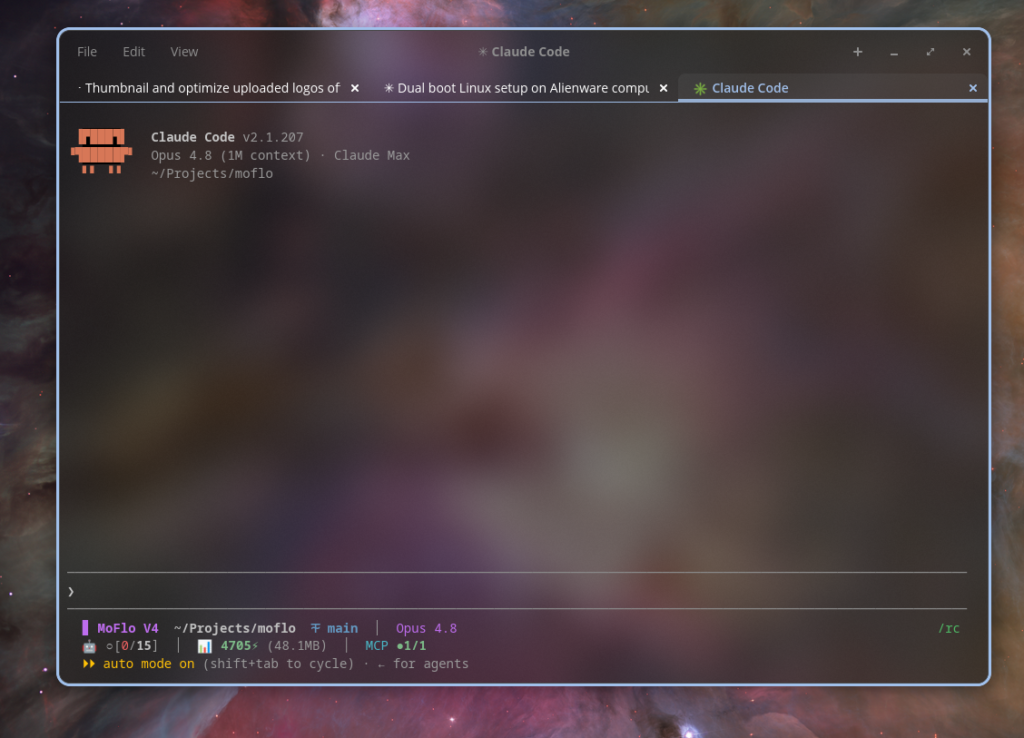
Caption: Frosted Glass in action — the COSMIC compositor blurring the desktop wallpaper through an app window. (Yes, that’s this very post being written.)
Turning it on is a couple of clicks. You’ll find it under:
Settings → Desktop → Appearance → Style → Frosted Glass
with per-surface toggles (panels, applets, system UI, windows) and sliders for frost thickness and glass opacity. And the pace is real — the next COSMIC release is tagged for July 14, with the updates flowing out to every distro that ships COSMIC shortly after.
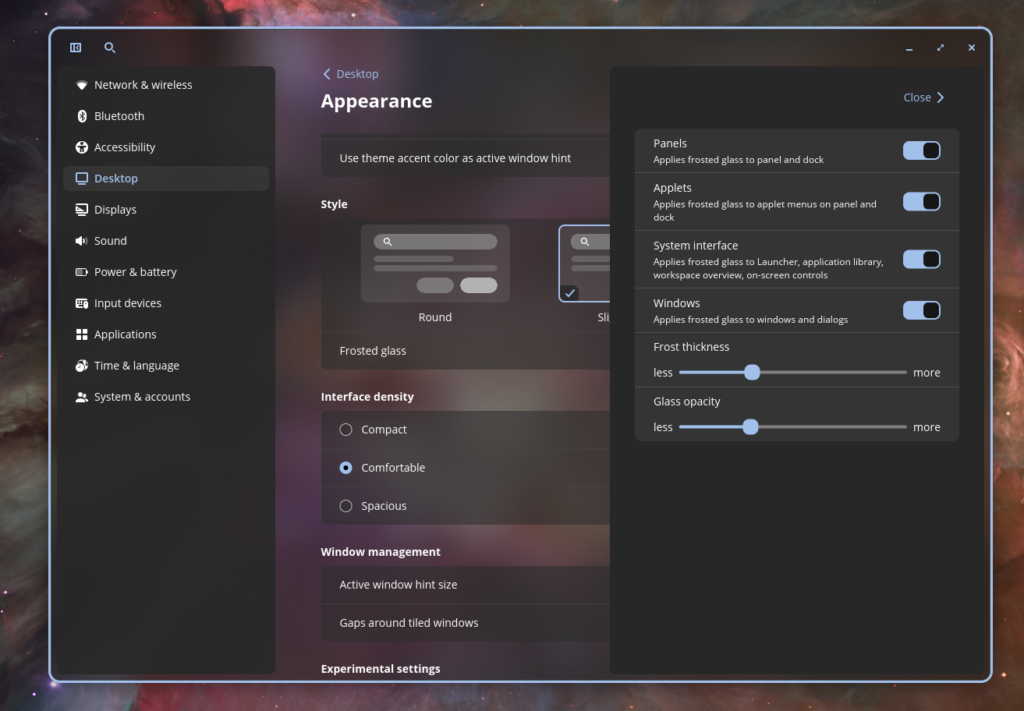
Caption: Where you tune it — Settings → Desktop → Appearance → Style → Frosted Glass, with independent toggles for panels, applets, system UI, and windows — plus Frost thickness and Glass opacity sliders.
Wrapping up
The whole exercise comes down to a swap the hardware market basically hands you for free: buy the machine on gaming economics, run it on developer economics — on an OS that itself costs nothing. The Alienware gave me the GPU and the NVMe at a price a “workstation” badge would have doubled. The BIOS detour — RAID to AHCI, Secure Boot off, a little disk surgery, one USB stick — is a one-evening tax, and most of the pain is avoidable if you disarm BitLocker and Fast Startup before you start.
What you’re left with is a setup that’s worked well for me — and I suspect for a lot of developers: a Linux daily driver that matches production, installs every tool natively, gives you a real shell, and skips the WSL seam entirely — with a Windows partition sitting quietly in the corner for game night. I kept mine. I almost never boot it.
If you’ve been eyeing a gaming laptop and telling yourself the OS is a dealbreaker: it isn’t. It’s an evening. Pour a beer, back up your BitLocker key, and go get COSMIC.
Have an Alienware (or any RAID-mode Dell) you’ve dual-booted? I’d love to hear where you drew the Windows/Linux line — and whether you kept the Windows partition at all.
Leave a Reply